AI video tools 4GB RAM India 2026: Create Reels/Shorts on 4GB RAM phones and student laptops
Estimated reading time: ~9 minutes
Key Takeaways
- Use lightweight editors like VN, Google Photos AI, and Alight Motion with low-quality previews to avoid crashes on 4GB RAM devices.
- Adopt proxy editing and offline-first workflows to reduce RAM usage and stay productive with poor connectivity.
- Offload heavy rendering to the cloud with Studio by TrueFan AI for HD/4K outputs without GPU requirements.
- Follow safe export settings (1080x1920 or 720p, 30 fps, 5–8 Mbps, H.264) to prevent out-of-memory export crashes.
- Choose budget phones with UFS storage, 6nm chips, and strong thermal management for reliable mobile editing under ₹15,000.
In the fast-paced digital landscape of 2026, the demand for high-quality video content has never been higher, yet many Indian creators still face the significant hurdle of limited hardware. Using AI video tools 4GB RAM India 2026 is no longer a luxury but a necessity for millions of students and aspiring influencers in Tier 2 and Tier 3 cities who rely on budget smartphones and entry-level laptops. While high-end editing suites often crash on these devices, a new wave of lightweight, cloud-assisted, and RAM-efficient workflows is making professional-grade video production accessible to everyone.
The “4GB RAM struggle” is a real phenomenon in India. According to recent 2026 market data from IDC, a global memory shortage has driven up the cost of high-spec components, keeping 4GB and 6GB RAM devices as the primary choice for the budget-conscious Indian consumer. However, this hasn’t slowed down the creator economy. In fact, businesses using AI-driven video marketing have seen a staggering 82% increase in ROI compared to traditional methods, proving that the tools you use matter more than the hardware you own.
Whether you are trying to grow a YouTube Shorts channel from a village in Bihar or managing a small business’s Instagram Reels from a student hostel in Pune, this guide provides the definitive blueprint for creating viral content without your device overheating or crashing.
1. The Low-Memory Creator’s Toolkit: Apps That Don’t Crash
For creators on 4GB RAM devices, the biggest enemy is “Out of Memory” (OOM) errors. Most modern editing apps are optimized for 8GB+ RAM, but a few specific tools have mastered the art of resource management.
VN Video Editor: The Performance King
VN Video Editor remains the gold standard for low memory AI video creator needs in India. Unlike heavier apps, VN allows you to enable a “Performance Mode” that reduces the background processing load. To make this work on a 4GB RAM phone:
- Set Preview to 480p: You don’t need to see the video in 4K while editing.
- Clear Cache Regularly: VN stores temporary files that can quickly choke your 64GB or 128GB storage.
- Limit Layers: Stick to a maximum of 3–4 video layers. If you need more, export the current draft and re-import it as a single clip.
Google Photos: The AI-Powered Shortcut
In a significant move for the Indian market, Google recently unveiled AI photo and video editing features that run on devices with as little as 4GB RAM and Android 8+. These tools allow you to edit videos using simple voice commands in localized Indian languages. According to the Google India Blog, these features use a hybrid model where simple tasks are handled on-device, while complex AI enhancements are processed in the cloud, making it a perfect RAM efficient AI video free solution.
Alight Motion for Motion Graphics
If you need keyframe animation or complex transitions, Alight Motion is the way to go. However, on a 4GB RAM device, you must use the “Low Quality Preview” setting. This ensures that the CPU focuses on the logic of the animation rather than rendering every pixel in real-time.
Source: Google India Blog on AI Editing
2. Proxy Editing & Offline Workflows: Pro Techniques for Old Devices
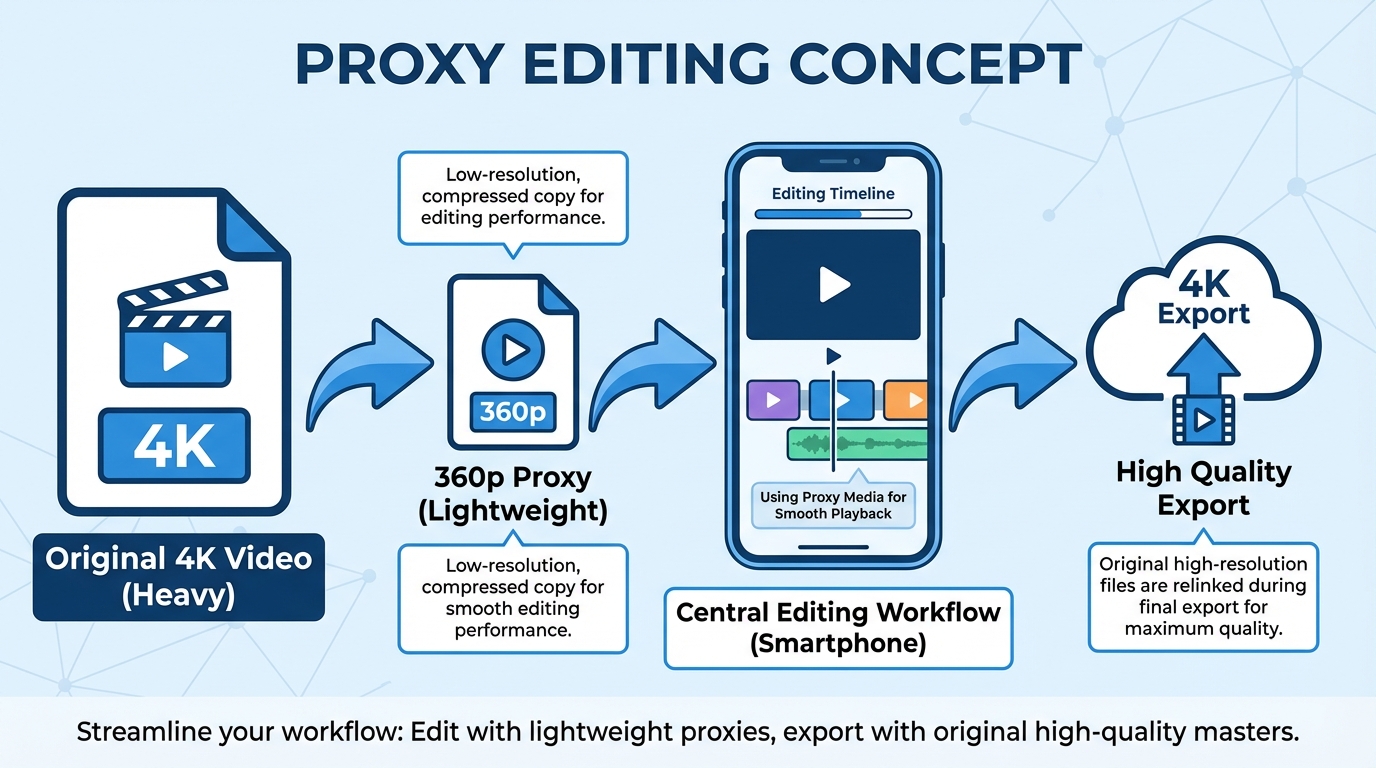
If you are serious about video creation old smartphone India, you need to adopt professional “Proxy Editing” workflows. This is the secret used by Hollywood editors, adapted for a ₹12,000 smartphone.
What is Proxy Editing?
Proxy editing involves creating a low-resolution copy (a “proxy”) of your high-quality footage. You perform all your cuts, transitions, and timing on the 360p proxy, which requires almost no RAM. When you are ready to export, the app swaps the proxy back for the original 1080p file.
- Step 1: Use a tool like Video Compressor to turn your 1080p footage into 360p.
- Step 2: Edit the 360p clips in your app of choice.
- Step 3: Replace the files before the final render.
The Offline-First Strategy
Connectivity in Tier 3 cities can be spotty. Offline AI video tools India allow you to work without a constant 5G connection. Apps like VN and Alight Motion allow for full timeline editing offline. You should only connect to the internet for “AI-heavy” tasks such as:
- Generating auto-captions.
- Applying AI-based background removal.
- Cloud-rendering complex 3D avatars.
By keeping the core editing offline, you prevent background data syncs from eating up your precious 4GB RAM. This “hybrid” approach is essential for student laptop video creation where the laptop might struggle to maintain a browser and an editor simultaneously.
3. Cloud-First Creation: Bypassing Hardware Limits with AI
When your local hardware hits a wall, the cloud is your best friend. In 2026, the most successful creators are those who offload the “heavy lifting” to remote servers. This is where the concept of AI video without GPU requirements India becomes a game-changer.
Instead of asking your phone’s budget processor to render a complex 3D avatar or sync lips to a script, you can use browser-based platforms. Platforms like Studio by TrueFan AI enable creators to generate high-quality, lip-synced videos by simply typing a script. Since the rendering happens on TrueFan’s high-end GPUs in the cloud, your 4GB RAM phone or low-spec laptop only needs to handle a simple web browser. For more on this approach, see our guide on real-time interactive AI avatars in India.
Why Cloud Rendering Wins in 2026:
- No Overheating: Your device stays cool because it isn’t doing the math; it’s just displaying the result.
- Speed: A render that might take 2 hours on a budget laptop takes 30 seconds in the cloud.
- Professional Quality: You get access to HD and 4K outputs that your local hardware could never export without crashing.
Studio by TrueFan AI’s 175+ language support and AI avatars allow Indian creators to produce content in Hindi, Tamil, Bengali, and Marathi with accurate regional accents. This is particularly useful for educational content or small business marketing where the creator might not want to be on camera but needs a professional spokesperson.
Source: HubSpot 2026 Marketing Trends
4. Laptop & Student Workflows: Editing Without a GPU
Many Indian students use laptops with Intel Celeron or Pentium processors and 4GB of RAM. These machines are notorious for freezing during video exports. However, student laptop video creation is entirely possible with the right software choices.
Lightweight NLEs (Non-Linear Editors)
Avoid heavy software like Adobe Premiere Pro or DaVinci Resolve. Instead, look at:
- CapCut Desktop: Surprisingly well-optimized for low-end Windows machines.
- Movavi Video Editor: Known for its “Fast Track” technology that allows for smooth scrubbing even on older CPUs.
- Clipchamp: Built into Windows 11, it uses web-based technologies that are often more RAM-efficient than traditional software.
Optimization Checklist for Low-Spec Laptops:
- Close Chrome: Chrome is a RAM hog. If you are editing locally, close every single browser tab.
- Use an SSD: If your laptop has an old HDD, upgrading to a cheap SATA SSD will make a bigger difference than adding RAM.
- External Storage: Keep your source footage on a fast USB 3.0 drive to reduce the load on your internal system bus.
For those who find local editing too frustrating, solutions like Studio by TrueFan AI demonstrate ROI through their ability to bypass these hardware limitations entirely, allowing a student with a ₹20,000 laptop to produce the same quality of video as someone with a ₹2,000,000 MacBook.
5. Compressed Video Creator Mobile: Export Settings for Success
Exporting is where most 4GB RAM devices fail. The “Export Crash” usually happens because the device runs out of memory while trying to encode the final frames. To avoid this, you must use a compressed video creator mobile strategy.
The “Safe” Export Settings for 2026:
- Resolution: 1080x1920 (9:16) is the standard, but if your device crashes, drop to 720x1280. On a mobile screen, the difference is negligible for Reels.
- Frame Rate: Stick to 30 fps. 60 fps requires double the processing power and RAM.
- Bitrate: This is the most important setting. For WhatsApp Status, use 2–3 Mbps. For Instagram/YouTube, use 5–8 Mbps. Anything higher is overkill for budget devices.
- Codec: Use H.264. While HEVC (H.265) creates smaller files, it is much harder for older CPUs to encode.
WhatsApp Status Optimization
In India, WhatsApp is a primary distribution channel. To ensure your video doesn’t look like a pixelated mess after WhatsApp’s own compression:
- Keep the file size under 15MB.
- Use “Burn-in” captions (hardcoded text) because WhatsApp’s compression often blurs small details.
- Use mono audio at 96kbps to save space for video data.
Source: TechCrunch on Google Photos Video Tools
6. The 2026 Budget Device Guide: Best Phones Under ₹15,000
If you are looking to upgrade, you don’t need a flagship. The best phone for video editing under 15000 in 2026 focuses on three things: UFS storage, a 6nm processor, and thermal management.
Top Picks for 2026 (Under ₹15,000):
- Redmi Note Series (Base Models): Usually offers the best balance of a decent processor (Snapdragon 4 Gen series or Dimensity 6000 series) and fast UFS 2.2 storage.
- Samsung Galaxy M-Series: Known for great battery life, which is essential for long editing sessions, and decent optimization for social media apps.
- Poco M-Series: Often provides the highest “raw power” for the price, making it a favorite for cheap phone video editing AI tasks.
What to Look For:
- UFS Storage: Avoid phones with eMMC storage. UFS is significantly faster at reading and writing large video files.
- Virtual RAM: Many 4GB RAM phones now offer “Virtual RAM” (using storage as RAM). While not as fast as physical RAM, it provides a necessary buffer to prevent app crashes.
- 1080p 30fps Stability: Check reviews on 91mobiles to ensure the phone doesn’t drop frames while recording, as “jittery” raw footage is impossible to fix with AI.
Source: 91mobiles Best Camera Phones Under 15000
7. FAQs & Conclusion
The landscape of AI video tools 4GB RAM India 2026 is proof that creativity is not bound by the price of your hardware. By using cloud-assisted tools, optimizing your export settings, and mastering proxy editing, you can compete with creators worldwide.
Conclusion
As we move through 2026, the digital divide in India is being bridged by software, not just hardware. With 75% of marketers now adopting AI for media creation, the barrier to entry has shifted from “Can I afford this computer?” to “Do I know how to use these AI tools?” By leveraging the power of cloud rendering and smart local optimization, every Indian student and creator can turn their 4GB RAM device into a professional production studio.
Sources:
Frequently Asked Questions
What are the best AI video tools for 4GB RAM India 2026 that are free?
VN Video Editor and the Google Photos AI editor are excellent free local tools for 4GB RAM devices. For cloud-based generation, Studio by TrueFan AI offers starter options to create professional AI avatar videos without needing a high-end device.
Can I really edit 1080p videos on a 4GB RAM phone?
Yes—use proxy editing (work on low-res copies and swap originals at export) and close background apps. This minimizes RAM spikes and keeps edits smooth.
Why does my video editing app keep crashing during export?
Crashes usually occur due to RAM spikes. Lower your export bitrate to 4–5 Mbps, stick to 30 fps, ensure your device is cool (remove case, use a fan), and try H.264.
Is there an offline AI video tool for India?
Most AI features like auto-captioning need internet. However, core editing (cutting, trimming, color) can be done offline in VN or Alight Motion; connect only for AI-heavy tasks.
What is the best phone for video editing under ₹15,000 in 2026?
Look for Dimensity 6100+ or Snapdragon 4 Gen 2 class chips, UFS 2.2 storage, solid thermals, and stable 1080p30 capture. Poco, Redmi, and Samsung are strong picks.
How can I make my AI videos look professional on a budget laptop?
Use cloud rendering. With Studio by TrueFan AI, your laptop acts as a controller while high-end GPUs render HD/4K videos, eliminating local bottlenecks.